
Microsoft Scout: A Complete Guide to the Always-On Autopilot Agent
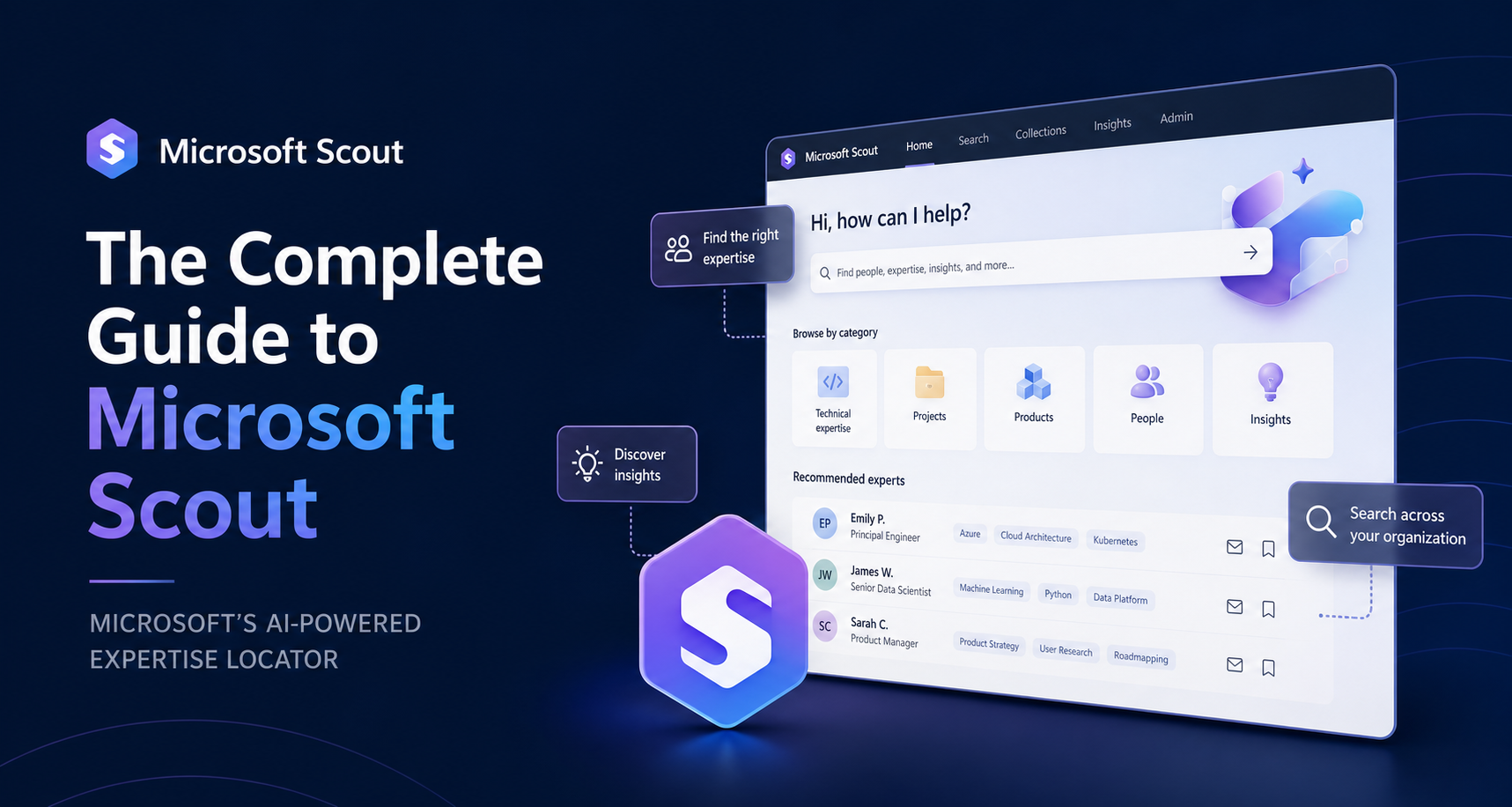
Microsoft Scout is the first Autopilot agent inside Microsoft 365. It stays on in the background, builds context about your work, and acts on your behalf. Here is everything you need to know: the Autopilot category, the OpenClaw open-source foundation, Work IQ, enterprise governance, eight example prompts, and how to get access.
 What it is
Microsoft Scout is an always-on AI agent. It is the first product in a new category Microsoft calls Autopilots. The core idea: most AI assistants wait for you to ask something. Scout does not.
It watches your work context. Your calendar. Your email. Your Teams chats. Your files in OneDrive and SharePoint. Over time it builds an understanding of what you care about, who you work with, and what needs to happen next. Then it acts. It schedules meetings. It blocks focus time. It flags risks before they become problems. It drafts the prep you need for a meeting you forgot was on your calendar.
Microsoft announced Scout on 2 June 2026 alongside the Work IQ APIs. It is currently in private preview through the Frontier programme. It is built on OpenClaw, an open-source agent framework with 381,000 GitHub stars. Microsoft contributes policy conformance and enterprise controls upstream to the OpenClaw project.
Scout runs in the cloud but reaches your desktop through a dedicated app. You interact with it in Teams. But it is not a chat-first product. The interaction model is ambient. It surfaces suggestions when it has something useful. You steer it, not the other way around.
 The Autopilot category
Microsoft groups its AI agents into three tiers. Copilot Chat handles single questions. You ask, it answers. Copilot Cowork handles multi-step tasks. You describe a project, it plans and executes. Autopilots are the third tier. They run continuously. They do not wait for a prompt.
Autopilots have four defining traits. First, they are always on. They stay active in the background even when you are not using them. Second, they have their own identity. Each Autopilot operates under a governed Entra ID, not a shared service account. Third, they act autonomously. They can take action without you starting each task. Fourth, they work across surfaces. Desktop, cloud, and web, with access to local resources and MCP servers through the desktop app.
Scout is the first Autopilot. More will follow. Microsoft has not named them yet, but the pattern is set: agents that carry work forward instead of waiting to be called.
What Scout can do
Scout's capabilities fall into six areas. Each one is designed to reduce a specific type of coordination work.
 Calendar and scheduling
- Scheduling: Scout finds times that work across time zones and schedules meetings on your behalf. It handles the back-and-forth that normally eats 15 minutes per meeting.
- Focus time protection: When Scout spots an upcoming deliverable, it blocks time on your calendar automatically. No manual time blocking needed.
- Meeting triage: Scout flags meetings that matter and ones you can skip. It surfaces conflicts and suggests alternatives before they become last-minute problems.
 Meeting preparation
- Prep briefs: Before a meeting, Scout pulls relevant emails, documents, and past conversations. It builds a short brief so you walk in ready.
- Context gathering: It identifies who is attending, what was discussed last time, and what open action items remain.
 Deliverable tracking
- Deadline awareness: Scout spots deliverables before they are due. It surfaces them early so you do not discover them the night before.
- Risk detection: It identifies stalled decisions and blocked work. If a proposal has been sitting without a response for a week, Scout flags it.
 Communication awareness
- Priority surfacing: Scout watches your email and Teams for messages that need a response. It filters noise and surfaces what actually matters.
- Stakeholder updates: It can draft status updates based on what it knows about active projects and recent conversations.
 Information retrieval
- Enterprise search: Scout finds documents, messages, and information across your OneDrive, SharePoint, and Teams history.
- Context-aware results: It understands who you work with and what projects you are on. Search results reflect that, not just keyword matches.
 Reach through the desktop app
- Browser actions: Through the desktop app, Scout can interact with your browser. It can pull information from web apps your organisation uses.
- Local file access: It can read files on your local machine, not just OneDrive and SharePoint.
- MCP servers: Scout connects to Model Context Protocol servers. This lets it reach tools like GitHub, Jira, Salesforce, or any system with an MCP connector.
How it works
Scout does not work like a chatbot. Here is the loop.
1. You set it up once. An admin enables Scout for your account through the Microsoft 365 admin centre. You install the desktop app. You configure which data sources Scout can access and which actions it can take without your approval. That is the one-time setup.
2. Scout builds context in the background. It learns from your calendar patterns, email threads, Teams conversations, and file activity. Work IQ maps the relationships between people, projects, and documents in your organisation. Scout uses that map to understand what matters to you specifically.
3. Scout surfaces suggestions. It does not interrupt you. When it has something useful, it shows a card in Teams or in the desktop app. A stalled decision. A meeting you need to prep for. A deliverable coming due. A time slot that works for everyone on that thread. You see it, you act or dismiss.
4. You approve sensitive actions. Scout can take some actions on its own. Blocking focus time. Flagging a message. But anything that touches other people, email replies, calendar invites, Teams messages, requires your approval. The approval card shows exactly what Scout plans to do and why. You approve, edit, or reject.
5. Scout learns from your feedback. Every time you approve, dismiss, or edit a suggestion, Scout adjusts. It gets better at predicting what you actually want. Over weeks, it stops suggesting things you ignore and gets sharper on the things you act on.
 Enterprise governance
The governance story for Scout is stronger than for any Microsoft agent before it. Here is what is in place.
Entra identity per agent. Scout does not run under a shared service account. Each instance gets its own governed Entra ID. Every action it takes is attributable to a known actor your directory already understands. If something goes wrong, you can trace exactly which agent did what, when, and under whose authority.
Scoped credentials. The credentials behind that identity are scoped to the task at hand. They are redacted from logs and diagnostics. When Scout acts on your behalf, nothing sensitive leaks along the way.
Permission boundaries. Scout cannot access anything you cannot already access. It operates within your existing Microsoft 365 permissions. If you cannot see a file, Scout cannot either.
Purview enforcement. Sensitivity labels and data loss prevention policies from Microsoft Purview are enforced in the moment. If a document is labelled confidential, Scout will not include it in a Teams message or email draft. DLP rules block sensitive data before it is sent or written.
Approval gates. Sensitive actions require human sign-off. Admins define which actions need approval and which can run automatically. The default is conservative: anything that sends a message or creates a calendar event needs approval.
Audit trail. IT can see what Scout recommended and why. The audit log shows suggestions, approvals, and actions without exposing the full content of user data. This is built on the existing Microsoft 365 compliance stack.
Upstream contribution. Microsoft is contributing policy conformance directly to the OpenClaw project. Any organisation running OpenClaw will be able to validate whether their environment meets their security and compliance requirements. The audit is verifiable and machine-readable.
 Use cases and example prompts
Scout is not prompt-driven the way Cowork is. It works from context, not instructions. But you can still point it at specific tasks. Here are eight workflows, with how you would describe them.
 Morning context
"Scout, every morning at 7 AM, give me a summary of what I need to know: today's meetings, unread messages from people I work with closely, deadlines in the next three days, and any stalled decisions from the last week."
Meeting prep on demand
"I have a steering committee meeting in two hours. What do I need to know? Pull the last status report, any open risks, and the slide deck from the last review. Build me a five-minute prep card."
 Coordination across time zones
"Find a 45-minute slot next week that works for Priya in London, Marcus in Seattle, and me. Include 15 minutes of buffer on each side. If nothing works, find the slot with the fewest conflicts and tell me who would need to move what."
Deliverable tracking
"Watch the website relaunch project folder in SharePoint. Tell me if anything is behind schedule or if a review has been pending for more than three days. Block focus time on my calendar the week before the launch date."
Priority triage
"For the next week, watch my inbox and Teams for messages from my direct reports and the executive team. Surface those immediately. Everything else can wait for the morning summary."
 Risk detection
"Track all active proposals in /Documents/Proposals/. Flag any that have not had a response in five business days. For each one, tell me who the approver is and draft a short follow-up note I can send."
Research across sources
"Pull information from the MCP-connected Jira instance and the project channel in Teams. Build a summary of what shipped last sprint, what is blocked, and what is planned for the next sprint. Save it to /Documents/Reports/sprint-review-YYYY-MM-DD.docx."
 Recurring compliance check
"Every Monday at 9 AM, check /Documents/Policies/ for any documents past their review date. For each overdue document, tell me who owns it and draft a reminder. Do not send anything without my approval."
 How to work with Scout
Scout is different from Cowork and Copilot Chat. The prompting patterns that work for those two do not apply here. Scout is ambient. It learns from watching, not from being told. But you can still shape how it works.
Set your priorities once. Tell Scout which projects matter most, which people you work with closely, and which meetings you never want to miss. It uses these as weights when deciding what to surface.
Be specific about boundaries. "Watch my inbox for messages from my team" is better than "watch my inbox." Scout needs to know what to filter out. The more precise your boundaries, the less noise you see.
Give it time to learn. Scout gets better over weeks, not hours. The first few days will feel generic. By week three, it starts to understand your patterns. By week six, it knows that you always prep for Monday steering committee on Friday afternoon and surfaces the relevant documents before you ask.
Use direct tasks for immediate work. Even though Scout is ambient-first, you can give it explicit instructions. "Find time for a 30-minute call with the design team this week" works like a prompt. Scout handles the coordination while you move on to other things.
Review the audit log monthly. Check what Scout has been doing. Which suggestions did you approve? Which did you dismiss? Are there patterns in what gets surfaced that do not match your actual priorities? Adjust the boundaries.
What to avoid. Do not expect Scout to work like Cowork. Scout is not a task executor. It does not create documents or build presentations. It coordinates. It surfaces. It keeps work moving. Use Cowork when you need a document built. Use Scout when you need to know which document to build and when. Do not give Scout vague instructions like "make me more productive." It needs specific signals to work with. And do not assume Scout knows about a project unless you tell it or it sees activity in the relevant files and channels.
 How Scout compares to Copilot Chat and Copilot Cowork
Microsoft now has three AI agent types in Microsoft 365. Each one serves a different need.
Copilot Chat is for questions and quick tasks. You type, it answers. It drafts text, summarises documents, and pulls information. Sessions last seconds to minutes. It is reactive. You start every interaction.
Copilot Cowork is for multi-step projects. You hand it a brief and it plans, executes, and checks in. It creates documents, sends emails, builds presentations. Sessions last minutes to hours. It is proactive within a single task. You start the task, it runs with it.
Microsoft Scout is for ongoing coordination. You do not start individual sessions. It watches your work and surfaces what matters. It schedules, flags risks, and tracks deliverables. It is continuously active. You steer, it drives.
The three products work together. Cowork handles the deep work. Scout handles the coordination around that work. Chat handles the quick questions that come up in between.
Here is a concrete example. You are leading a product launch. Scout surfaces that the legal review has been stalled for four days and blocks time on your calendar to address it. You ask Cowork to pull the latest draft, summarise the open issues, and draft an email to the legal team. You use Chat to quickly check the launch date against the marketing calendar. Three agents. One workflow.
 Architecture and platform
Scout runs on three layers.
OpenClaw is the open-source agent framework underneath. It handles reasoning, tool use, and task execution. Microsoft chose OpenClaw instead of building proprietary agent infrastructure. The repo has 381,000 stars and active community contribution. Microsoft contributes policy conformance and enterprise hardening upstream, which means any organisation running OpenClaw gets the same compliance validation Scout uses.
Work IQ is Microsoft's intelligence layer. It builds a semantic understanding of your organisation by processing email, calendar, meetings, chats, files, people, and collaboration patterns continuously. It does not just index documents. It maps relationships. Who works with whom. Which documents belong to which project. Which meetings are about which deliverables. Scout uses this map to understand context. Without Work IQ, Scout would be a calendar bot with good timing. With it, Scout knows that the email from Legal about the launch contract is related to the slide deck you were editing yesterday, which is related to the steering committee meeting next Tuesday.
The desktop app is Scout's reach beyond cloud-only M365. Through the app, Scout can access your browser, local files, and any MCP server your organisation has configured. This is the bridge between the cloud agent and your local work environment. If your team uses Jira for project tracking, Scout connects to the Jira MCP server and can surface ticket status alongside your email and calendar context.
You interact with Scout in Teams. The desktop app runs quietly. Scout surfaces cards and suggestions in Teams chat. You can also give Scout explicit instructions there.
 Pricing and licensing
Microsoft has not published Scout pricing yet. The product is in private preview and pricing details typically come closer to general availability. Here is what we know.
Access requires Frontier enrolment. Frontier is Microsoft's early-access programme for M365 Copilot features. Organisations in the programme test prerelease products and provide feedback. Scout is an experimental release through Frontier.
You also need a GitHub Copilot licence. Every Scout user must have an active GitHub Copilot subscription. This is an unusual requirement. It suggests Microsoft sees Scout as a developer-adjacent product, at least during preview, or that Scout's identity model ties into GitHub's authentication infrastructure.
Beyond licensing, Scout needs Intune policy configuration. Admins must set policies that define what Scout can access and which actions need approval. There is an opt-in attestation step. This is not a product you can turn on by flipping a switch.
Given that Cowork uses consumption-based Copilot Credits on top of the $30 USD per user per month Copilot licence, Scout will likely follow a similar model when it reaches general availability. An always-on agent that runs continuously will consume credits differently from a task-based agent that only runs when called. How Microsoft meters always-on usage is an open question.
 Limitations and open questions
Scout is the least mature of Microsoft's three agent products. Here is what is not yet clear.
Private preview only. Scout is not generally available. It is an experimental release through Frontier. Timeline for GA has not been announced. Organisations outside Frontier cannot use it.
No published pricing. We do not know what Scout will cost. Always-on agents burn tokens continuously. Metering that fairly is harder than metering discrete tasks. Microsoft has not explained its approach.
Learning curve for users. Ambient agents are different from chatbots. Users need to learn a new interaction model: configure boundaries, review suggestions, give feedback. If users treat Scout like Chat, they will be frustrated. If they ignore it, it brings no value. Adoption will depend on how well Microsoft onboards users to the ambient model.
Boundary setting is manual. Scout needs clear boundaries about what it can see and what it can act on. Setting those boundaries is currently an admin task through Intune. There is no user-facing boundary configuration yet. This puts a burden on IT and creates a gap between what users want and what admins configure.
Work IQ dependency. Scout is only as good as the Work IQ graph. If your organisation's Work IQ is incomplete, because some teams do not use SharePoint, or some projects live outside M365, Scout's context will have gaps. Microsoft has not said how Scout handles partial context.
Desktop app requirement. The browser, local file, and MCP features need the desktop app. There is no browser-only or mobile path for those capabilities. If your organisation restricts desktop app installs, Scout's reach is limited.
OpenClaw divergence risk. Scout is built on OpenClaw. Microsoft contributes upstream. But the enterprise features, Entra identity, Purview DLP, Intune policies, are Microsoft-specific. If Microsoft's fork diverges from upstream OpenClaw, organisations that want both open-source flexibility and enterprise controls may face a choice.
Getting access
If your organisation wants to try Scout, here are the steps.
- Enrol in the Frontier programme through the Microsoft 365 admin centre.
- Configure Intune policies for Scout. Define which data sources it can access, which actions need approval, and which users get access.
- Complete the opt-in attestation. Microsoft requires explicit acknowledgement before enabling Scout.
- Ensure users have GitHub Copilot licences assigned.
- Have users download and install the Scout desktop app.
- Users connect to Scout through Teams. The initial setup takes a few minutes: configure priorities, set boundaries, connect MCP servers if needed.
After setup, Scout starts building context. The first week is quiet. Scout is learning. Give it explicit tasks during this period to help it understand your work patterns. By week two, suggestions start surfacing. By week four, the suggestions should feel relevant. If they do not, review your boundaries and priorities.
Microsoft has published setup instructions at learn.microsoft.com. The OpenClaw project lives at github.com/openclaw/openclaw.
Sources
- Introducing Microsoft Scout: Your always-on personal agent (Microsoft, 2 June 2026)
- Announcing the new Work IQ APIs (Microsoft, 2 June 2026)
- OpenClaw (GitHub)
Connect with me on LinkedIn.