
Copilot Cowork: A Complete Guide to Microsoft's Autonomous AI Agent
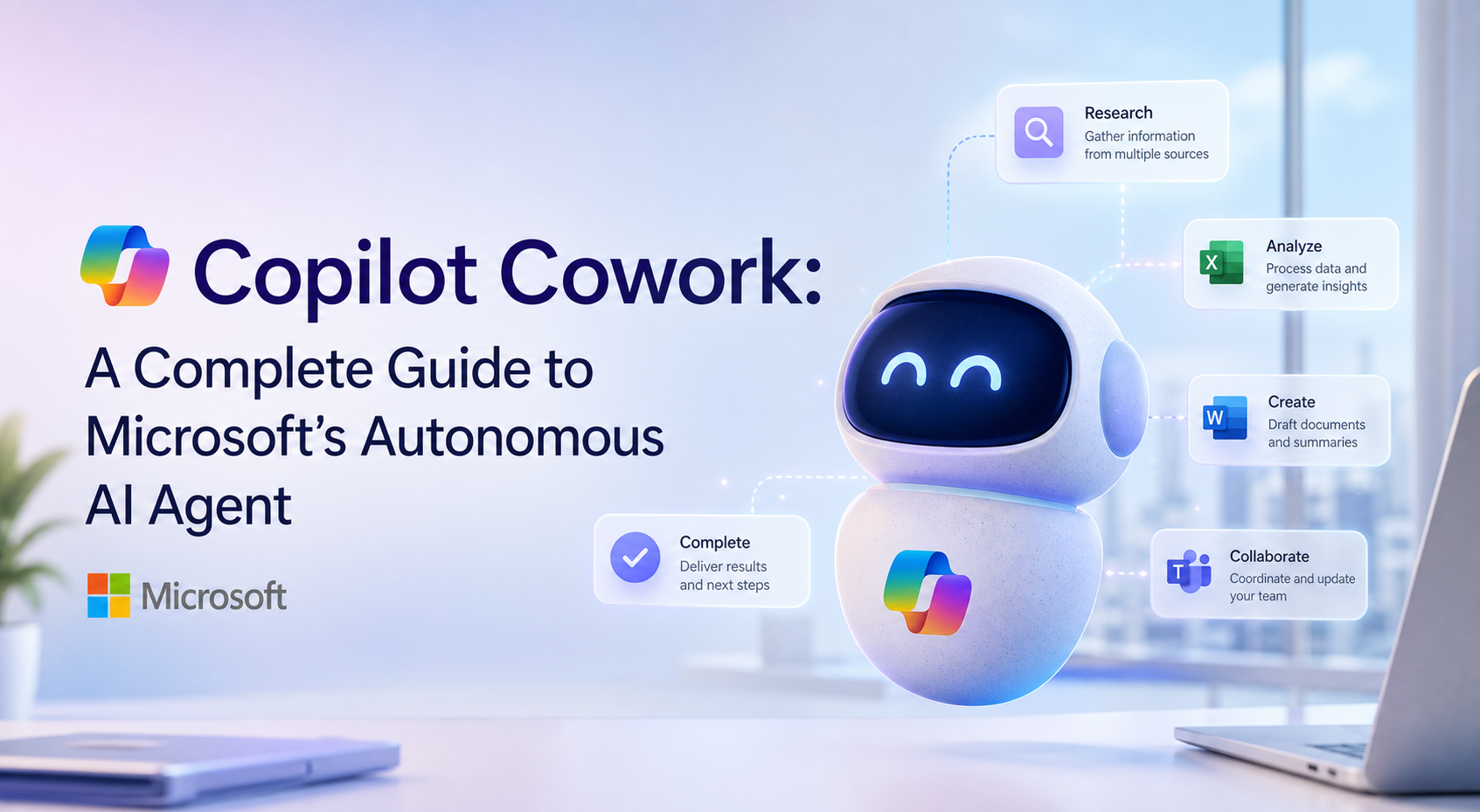
Copilot Cowork is Microsoft's autonomous AI agent that takes action across Outlook, Teams, Word, Excel, PowerPoint, and OneDrive. Here is everything you need to know: the 13 built-in skills, how custom skills work, pricing, a prompting guide, and ten real-world use cases.
 What it is
Copilot Cowork is Microsoft's autonomous AI agent inside Microsoft 365. It answers questions and drafts text like Copilot Chat does. But its real job is taking action across Outlook, Teams, Word, Excel, PowerPoint, SharePoint, and OneDrive. You describe a task and Cowork plans the steps, executes them, and checks in when it needs your approval. You stay in control the whole time.
Microsoft calls this shift "from chat to action." The idea is simple: Copilot Chat helps you think. Cowork helps you do.
Cowork reached general availability on 16 June 2026. It runs on Anthropic's Opus 4.8 and Sonnet 4.6 models, with a lower cost Cowork 1 model arriving later. It draws on Microsoft's Work IQ layer, a service that maps relationships between your emails, meetings, files, people, and projects so Cowork can act with the same context you bring to your job.
What Cowork can do
Cowork ships with 13 built-in skills. Each skill handles a specific category of work. When you start a conversation, Cowork activates the relevant skills based on what you ask for.

 Communication
- Email: Draft, reply, forward and send messages through Outlook. Cowork can manage your inbox by sorting mail into folders and flagging what needs attention.
- Teams: Post updates to channels, send direct messages, and create formatted cards with structured data.
- Communications: Prepare stakeholder updates, announcements and follow-up messages.


 Documents and files
- Word: Create and edit documents from scratch or from existing files you share.
- Excel: Build spreadsheets, run analysis, and produce formatted tables.
- PowerPoint: Generate presentations, including brand compliant decks when you provide a template.
- PDF: Create PDFs and preview them inline without downloading.
Calendar and meetings
- Scheduling: Create calendar events, add attendees, and set up recurring meetings using natural language.
- Calendar Management: Clean up conflicts, reschedule meetings, decline low priority invites, and protect focus time.
- Meetings: Generate prep briefs, meeting packets with agendas and supporting documents, and follow-up summaries.
- Daily Briefing: Produce a morning summary of your calendar, unread emails, pending deadlines, and Teams mentions.

 Research and search
- Enterprise Search: Find documents, messages, and information across your SharePoint and OneDrive.
- Deep Research: Synthesise information from multiple sources into detailed reports.
 Automation
- Adaptive Cards: Display interactive cards with structured data, buttons, and charts inside the conversation.
- Scheduled prompts: Set recurring tasks that run automatically. "Send me a daily briefing every morning at 9 AM" works exactly how you would expect.
 How it works
A typical Cowork session follows five stages.
1. You describe the task. Tell Cowork what you need in plain language. You can include files by dragging them into the chat. The input field accepts up to 250,000 characters. You can also use voice input.
2. Cowork builds a plan. It breaks your request into steps. You see each step appear in the conversation as Cowork works through them. A streaming response shows output word by word so you do not have to wait for the full result.
3. You steer as needed. You can interrupt Cowork at any point to add context, change direction, or ask for clarification. If you send a new message while Cowork is busy, it queues your input and adjusts its approach. You can pause, resume, or cancel the task at any time.
4. You approve sensitive actions. Before Cowork sends an email, posts to Teams, or creates a calendar event, it pauses and asks for your go ahead. The approval card shows exactly what it plans to do. You can inspect the technical parameters, approve once, tell it to skip prompts for similar actions in that conversation, or cancel. Medium and high risk actions carry a risk level indicator.
5. You review the results. Files Cowork creates land in your OneDrive Cowork folder. You can download individual files or grab everything as a single zip archive. You can ask Cowork to revise anything you do not like.
 Custom skills
The 13 built-in skills cover common workflows. Custom skills let you teach Cowork your own repeatable processes. A custom skill is a folder you drop into OneDrive at /Documents/Cowork/skills/<skill-name>/ containing a single SKILL.md file. Cowork discovers it automatically at the start of each new conversation. No admin, no Copilot Studio, no app package needed.
The SKILL.md file uses YAML frontmatter with two fields: name (kebab-case, matching the folder name) and description (the trigger Cowork uses to activate the skill). The body contains Markdown instructions for the workflow. You can create up to 50 custom skills with a 1 MB limit per file.
This format follows the Agent Skills open standard, which means the same SKILL.md file also runs in Claude Code, VS Code Copilot, Gemini CLI, Cursor, and JetBrains Junie. The Cowork specific parts, like OneDrive save paths, still work in other runtimes.
You can also ask Cowork to create skills for you using natural language. Describe the workflow you want and it writes the SKILL.md file.
 Pricing
Two layers of cost.
First, you need a paid Microsoft 365 Copilot licence. The standard Copilot add-on is $30 USD per user per month.
On top of that, Cowork uses usage-based billing in Copilot Credits. Pay-as-you-go is $0.01 USD per credit. You can also commit usage volume up front through Microsoft's P3 option for a discount.
What a single run costs depends on four factors: model selection, context retrieval, tool calls, and runtime. A light task like a meeting prep brief burns a few credits. A heavy research job on Opus 4.8 costs more. Microsoft provides a cost estimator tool and admins can set spending limits at tenant, group, and user level.
Cowork is off by default. An admin must enable it and choose which users get access. Usage reporting is available at each level.
 Use cases and example prompts
Here are real workflows Cowork handles, with the prompts that drive them.
 Morning briefing
"Send me a daily briefing every morning at 8 AM. Include today's calendar, unread emails from the last 12 hours, Teams mentions I have not responded to, and any deadlines in the next three days. Format it as a Word document saved to /Documents/Briefings/."
 Inbox triage
"Go through my inbox from the last 48 hours. Sort everything into five buckets: needs reply, FYI only, action required, meeting related, and low priority. Draft replies for the needs reply bucket. Do not send anything until I approve each draft."
 Calendar cleanup
"Review my calendar for next week. Flag any conflicts, back to back meetings with no break, and meetings where I am optional. Propose a revised schedule that protects two hours of focus time each morning. Decline the low value meetings with a polite note. Show me everything before you apply changes."
 Meeting preparation
"Prep me for my 2 PM meeting with the Acme account team. Pull the last three email threads with Acme, find the latest proposal document, check for any open action items from previous meetings, and build a one page prep brief. Save it to /Documents/Meeting Prep/."
 Project status report
"Generate this week's status report for the website relaunch project. Check the project tracker in /Documents/Projects/website-relaunch/, pull the latest commits and PR comments from the repo, and draft a status update for the steering committee. Include what shipped, what is blocked, and what is next."
 Document creation from templates
"Using the brand template at /Documents/Templates/company-deck.potx, build a 10 slide presentation summarising Q2 results. Pull data from the Q2 sales spreadsheet in /Documents/Reports/Q2-2026-sales.xlsx. Include charts for revenue by region, customer growth, and product mix."
 Research synthesis
"Research our top three competitors' recent product announcements. Pull information from their websites, press releases, and any internal notes in SharePoint tagged 'competitive'. Produce a five page summary with a comparison table and a section on what this means for our Q3 roadmap."
 Recurring compliance check
"Every Monday at 10 AM, check /Documents/Policies/ for any documents past their review date. For each overdue document, identify the owner from the document metadata and draft a reminder email. Save the summary spreadsheet to /Documents/Compliance/overdue-reviews-YYYY-MM-DD.xlsx. Do not send the emails without my approval."
 Meeting follow-up
"Take the transcript from yesterday's design review and produce three things: a list of action items with owners, a summary for the team channel in Teams, and draft follow-up emails to the three people who got assigned tasks. Save everything to /Documents/Meeting Notes/design-review-YYYY-MM-DD/."
 Newsletter generation
"Sweep my news sources for the top five AI and enterprise tech stories from the last week. Build an HTML newsletter with a headline, two paragraph summary, and source link for each story. Use the newsletter template at /Documents/Templates/newsletter.html. Save the draft. Do not send."
 Prompting guide
Cowork works best when you treat it like a capable colleague who needs clear instructions. Here is what makes the difference between a good prompt and a frustrating one.
Be specific about the outcome. "Email Sarah about the Q2 review tomorrow at 2 PM" beats "Send that email." Give Cowork the who, what, when, and where.
Include file paths. Cowork reads your OneDrive and SharePoint. Point it at the exact file or folder. "Use the data in /Documents/Reports/sales-may-2026.xlsx" instead of "use the sales data."
Set approval boundaries. Tell Cowork when to draft and when to send. "Draft the email and wait for my approval before sending" is the safer default for anything going to external recipients.
Specify the format. If you want a Word document, say so. If you want a Teams message, specify the channel. Do not assume Cowork will pick the right output format.
Break complex jobs into phases. For multi day projects, give Cowork one phase at a time. "First, audit the current project files and list what is missing. We will tackle the gaps in the next step."
Use scheduled prompts for recurring work. Anything you do weekly goes on a schedule. "Every Friday at 4 PM, compile the weekly project status across all active trackers in /Documents/Projects/ and save a summary to /Documents/Reports/weekly-status-YYYY-MM-DD.docx."
Check in on long tasks. Cowork shows real time progress indicators. If the steps stop updating for more than 60 seconds, the task may have stalled. You can ask "where are we up to?" or refresh the session.
Review before you approve. The approval card shows exactly what Cowork plans to do. Check the recipients, content, and details. Cowork is fast. A 30 second review catches mistakes before they reach real people.
What to avoid. Do not give Cowork vague, single sentence instructions for complex tasks. Do not assume it knows which file you mean without a path. Do not approve actions without reading them. And do not expect Cowork to access files on your local device: it only works with OneDrive and SharePoint.
 Plugins and integrations
Beyond the 13 built-in skills, Cowork connects to external tools through plugins. Microsoft announced plugin support in May 2026 with connectors for Dynamics 365, ServiceNow, Salesforce, and SAP. These let Cowork pull data from your CRM, create support tickets, or update records in your ERP, all from the same conversation.
Plugins use the MCP (Model Context Protocol) standard. Admins deploy them through the Microsoft 365 admin centre or the Microsoft 365 App Store. Enterprise controls let you set allow lists for which MCP servers developers can access from their IDEs.
Admins can package the same custom skill format as a plugin for org wide deployment through a conversion script Microsoft provides.
 Cross platform access
Cowork runs in the cloud, so your laptop does not need to stay awake. You can delegate a task, close your machine, and come back to finished work.
It is available in your browser at m365.cloud.microsoft and in the Microsoft 365 Copilot desktop app for Windows and Mac. Mobile support for iOS and Android arrived in May 2026, so you can hand off tasks from your phone between meetings or during your commute.
 Enterprise governance
Admins get a full control plane. Cowork is off by default. You enable it per user or per group. Spending limits and usage alerts can be set at tenant, group, and user level, with detailed reporting at each tier.
All Cowork actions go through your Microsoft 365 account permissions. It cannot access anything you cannot already access. It runs in an isolated environment and does not read encrypted files.
For organisations that need more granular control, admins can manage which MCP servers are available, audit agent activity, and set policies for custom skill usage. Microsoft's documentation covers the full admin governance path.
 Limitations
Cowork has clear boundaries. It cannot access or edit files on your local device. It cannot delete files or folders in OneDrive or SharePoint. Attached files must be under 200 MB. Custom skills are not validated by Microsoft, so you need to review their outputs.
Cowork also cannot read encrypted files, even when you have access. And while it handles a wide range of file types, some formats like Visio diagrams and Access databases are not supported for preview or editing.
For now, Cowork is browser and desktop only. Mobile support covers delegation but not the full authoring experience. Microsoft has not announced a timeline for full mobile parity.
 How it compares to Copilot Chat
Cowork and Copilot Chat serve different purposes, and Microsoft positions them as complementary.
Copilot Chat is the always on AI assistant for fast, single task work. You ask a question, get an answer, draft some text. It takes seconds to minutes. Think of it as the tool you reach for when you need a quick answer or a first draft.
Cowork is for end to end work across multiple apps and data sources. It plans, executes, checks in, and produces finished output. Tasks run for minutes to hours. Think of it as the colleague you hand a project brief to while you focus on something else.
The distinction matters because it affects how you use each tool. Chat is for questions. Cowork is for delegation.
 Getting started
If your organisation has Copilot Cowork enabled, getting started takes about two minutes.
- Go to m365.cloud.microsoft and select Cowork.
- Pick a suggested prompt or type your own task description.
- Attach any relevant files by dragging them into the chat.
- Send your message and watch Cowork work through the steps.
- Approve actions when prompted and review the output.
Start with something contained, like a meeting prep brief or an inbox triage. These give you a feel for the workflow without sending anything to real recipients. Once you trust the approval loop, hand off larger tasks.
Microsoft's documentation is at learn.microsoft.com. The awesome-copilot-cowork-skills repo on GitHub has 21 community built custom skills with tested workflows if you want ready made examples.
Sources
- Copilot Cowork: A new way of getting work done (Microsoft, 9 March 2026)
- Copilot Cowork: From conversation to action across skills, integrations, and devices (Microsoft, 5 May 2026)
- Copilot Cowork is now generally available (Microsoft, 16 June 2026)
- Cowork documentation (Microsoft Learn)
- awesome-copilot-cowork-skills (Mathieu Kessler, GitHub)
Connect with me on LinkedIn.